AI video tools have shifted from “cool demo” to “real production pipeline” in just a couple years, especially for short-form content where speed beats perfection.
The question isn’t whether AI can generate a video. It’s whether the video looks on-brand, sounds human, exports cleanly, and can be edited without fighting the tool.
This CapCut AI review is based on a practical evaluation: creating videos from scripts, testing templates across different use cases, and pushing avatar features (including cloning) to see what holds up outside the marketing page.
We also looked at whether CapCut AI’s value proposition still makes sense in a market where tools like Synthesia, InVideo AI, and VEED keep bundling more generative features.
If you want a tool that can take you from idea → script → scenes → captions → export quickly (and cheaply), CapCut AI is very close to the top of the list.
If you’re trying to replace a professional NLE for complex client edits, it’s not that.

CapCut AI
CapCut AI lets anyone create polished videos in minutes using AI avatars, text-to-video generation, and ready-made templates — no editing skills required.
With a 7-day free trial and a $3.99 first-month Pro offer, it's a low-risk tool worth testing.
- Best For: Beginner content creators, social media managers, faceless YouTube channel operators, small business marketers
- Not Ideal For: Pro video editors needing granular timeline control; enterprise teams needing LMS/SCORM + advanced compliance
- Free Trial: 7 days — no credit card required
- Starting Price: $3.99 for the first month (then $19.99/month or $179.99/year)
- Platforms: Web browser, Desktop (Windows/Mac), Mobile
- Verdict Summary: CapCut AI nails the “all-in-one” promise for text-to-video. Avatar cloning and the AI brainstorming tool are the two features that feel meaningfully different from a lot of lookalike editors. The $3.99 introductory month makes it one of the lowest-risk ways to test AI video production seriously.
Key Findings at a Glance
| Category | Score | One-line finding |
|---|---|---|
| Ease of Use | 9/10 | A simple workflow most beginners can finish fast |
| Feature Depth | 8/10 | Avatar cloning + brainstorming tool stand out |
| Output Quality | 7.5/10 | Strong HD exports; avatar realism varies |
| Value for Money | 8.5/10 | $3.99 first month is hard to beat |
| Platform Availability | 9/10 | Web + desktop + mobile covered |
| Customization | 7/10 | Good scene edits; limited “pro timeline” control |
Design and Build: First Impressions
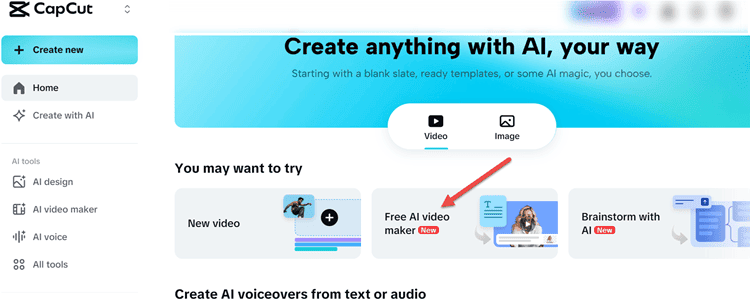
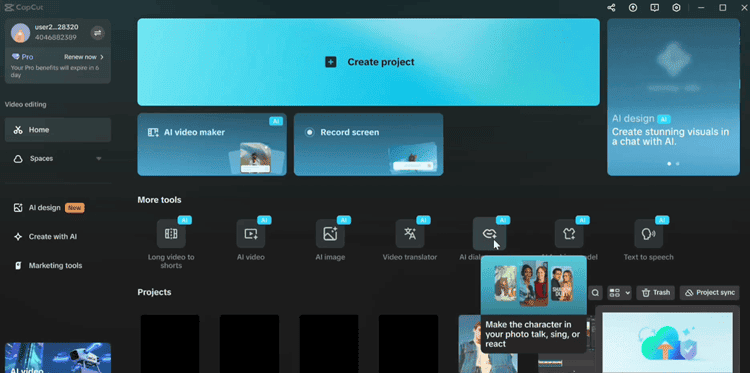
CapCut AI’s interface is one of its strongest advantages. The dashboard is clean, the primary entry point (“AI Video Maker”) is easy to spot, and the overall design language feels built for creators rather than post-production professionals.
That matters, because most people evaluating CapCut AI are trying to publish quickly, not master a complicated timeline.
Across web, desktop, and mobile, the experience is surprisingly consistent.
The web version is optimized for fast creation and lightweight edits.
Desktop feels more like a “real editor,” with a stronger editing environment and more comfortable scene-level control.
Mobile is best for last-mile tweaks and social posting rather than full-scale project management.
Onboarding is also straightforward. You can jump into a project without understanding codecs, keyframes, or audio mixing.
CapCut AI nudges you toward templates, instant generation, and guided flows. These are exactly what beginners need to avoid getting stuck.
Key Features: What CapCut AI Actually Does (and What It Doesn’t)
1) AI Video Generator (Text-to-Video)
At the core is text-to-video:
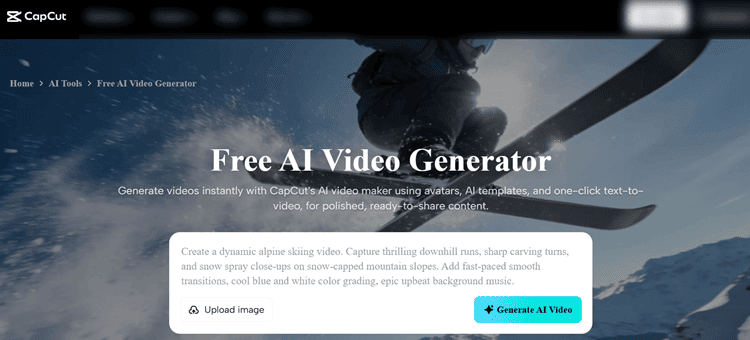
Paste a script or enter a topic and CapCut AI generates a structured video with scenes, pacing, and visuals.
Styles like realistic film, cartoon 3D, and cinematic give you quick creative direction with minimal setup.
A realistic use case:
A small business owner takes a product description, converts it into a short script, and gets a 45–60 second promo video in minutes. It’s not always “brand-perfect,” but it’s fast, and it gets you 80% of the way there.
Honest limitation:
CapCut’s auto-selected visuals can look generic, especially for niche industries or products. You’ll often want to swap scenes manually for real product shots or more on-brand assets.
2) 100+ AI Avatars
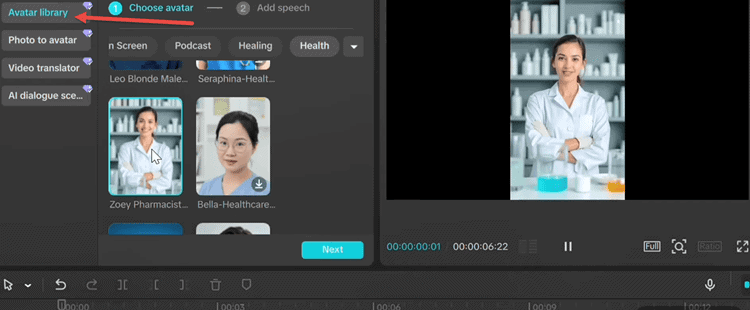
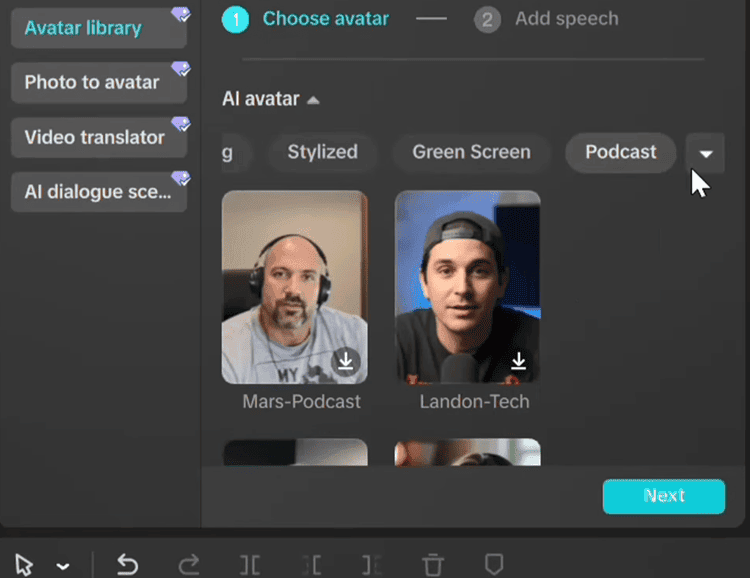
CapCut AI includes a large avatar library, and it’s good enough for explainers, tutorials, and social content where production speed matters.
Pairing an avatar with the right voice matters more than people think. An “off” voice can make even a good avatar feel uncanny.
A strong use case: educators and coaches who want “presenter-led” videos while staying off camera can produce consistent training clips quickly.
3) Avatar Cloning (Key Differentiator)
Avatar cloning is the feature that can justify CapCut AI on its own for some creators.
You upload a short clip of yourself and CapCut generates a version you can reuse. This is useful for scaling content, protecting privacy, or maintaining a consistent on-screen “host.”
This competes conceptually with tools like Synthesia’s personal avatars (typically priced much higher), but CapCut’s entry price makes experimentation far easier.
Caveat: realism varies by source video quality and by avatar style. You’ll get better results with stable lighting, neutral background, and a 30–60 second clip at eye level.
4) 30+ AI Templates
Templates cover common formats: news updates, educational explainers, marketing promos, and social posts.
If you’re producing volume (like reels for multiple clients), templates are a shortcut to consistent pacing and transitions.
If you’re a social media manager who needs five variations of the same message for different audiences, templates reduce the “structure work” and let you focus on copy, assets, and hooks.
5) AI Brainstorming Tool (Often Overlooked)
This is a sleeper feature.
The brainstorming tool generates topic ideas, outlines, and basic storyboards from minimal inputs. In real workflows, the blank page is often the true bottleneck, not editing.
A weekly YouTuber can generate 10 ideas in a few minutes, then expand the best two into outlines or scripts.
This makes CapCut AI more “end-to-end” than tools that only start once you already have a script.
Tip: Be specific. “Beginner home gym setup on a $500 budget” gets far better outputs than “fitness.”
6) One-Click Video Creation
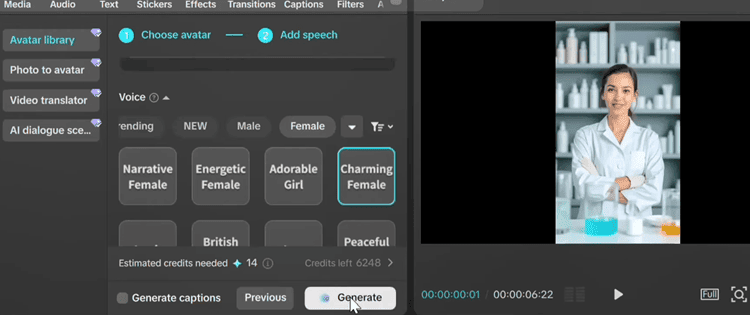
One-click generation is great for speed, but it’s also the feature where your expectations must be realistic.
CapCut AI chooses the pacing, transitions, and background music automatically.
For social posts, the output is often perfectly usable.
For client-facing brand work, you’ll likely refine scenes, music, and captions.
Step-by-Step Workflow Walkthrough (Desktop vs Web)
Desktop Workflow (4 steps)
| Step | What you do | Time estimate |
|---|---|---|
| 1 | Open desktop app → “AI video maker” | ~30 sec |
| 2 | “New Project” → topic/script → ratio + style → Create | ~2–3 min |
| 3 | In Scenes: choose avatar + voice, add subtitles, add music | ~5–10 min |
| 4 | Export settings → Export / “Edit More” | ~1–2 min |
Desktop is the best option when you want to adjust scenes with more confidence. The scene panel makes it easy to swap visuals, tweak captions, and adjust timing without the complexity of a full pro timeline.

Web Workflow (3 steps)
| Step | What you do | Time estimate |
|---|---|---|
| 1 | CapCut website → AI video maker → Instant AI video | ~30 sec |
| 2 | Choose style → paste/generate script → ratio + voice + duration | ~2–3 min |
| 3 | Create → add music/subtitles/effects → export HD | ~2–5 min |
Web is ideal for speed and accessibility. It’s also easier for teams where someone writes the script and another person “assembles” the output without needing a powerful computer.
Performance and Reliability: Output Quality Assessment
For performance, we focused on what actually matters: generation speed, voice quality, lip-sync, and whether the visuals match the script.
In practice, CapCut AI is fast enough that you can iterate multiple versions without losing an afternoon.
Export Quality Specifications
| Export Parameter | Free Plan | Pro Plan |
|---|---|---|
| Maximum Resolution | HD (1080p) | Up to 8K |
| Supported Formats | MP4 | MP4 + additional formats |
| Frame Rate Control | Standard | Adjustable |
| Watermark | Present | Removed |
| Audio Quality | Standard | Enhanced |
Generation speed:
A ~60-second video is typically produced quickly enough to support “draft → refine → finalize” iteration.
The bigger factor is how often you re-roll scenes or change style directions, not raw render time.
Voiceover naturalness:
Voices vary meaningfully. Some are crisp and conversational; others sound more synthetic. You should test multiple voices per project because voice choice is the fastest way to raise perceived quality.
Avatar lip-sync:
It’s good for social content, not perfect for close-up cinematic realism. For most talking-head explainers, it’s acceptable, especially if your avatar isn’t full-screen the entire time.
Visual coherence:
CapCut AI generally stays on-topic, but it can drift into generic stock imagery. When your script references specific products, UI elements, or niche concepts, manual scene replacement may be required.
💡 Tip: Test 3–4 voice options before committing—the difference can be bigger than you expect.
Pricing and Plans
CapCut AI keeps pricing simple, and the $3.99 first-month deal is the headline.
The 7-day free trial is genuinely useful because it lets you validate avatar quality and export workflow before paying.
CapCut AI Pricing
| Plan | Price | Key inclusions | Best for |
|---|---|---|---|
| Free Trial | $0 / 7 days | Full feature access during trial | First-time evaluators |
| Pro Monthly | $3.99 first month, then $19.99/mo | Pro features, HD+ export, no watermark | Testing ongoing usage |
| Pro Yearly | $179.99/yr (~$15/mo) | Pro features with discount | Frequent creators |
Compared with many AI avatar/video platforms, CapCut’s introductory month is exceptionally low friction.
It’s the best “try it seriously” price point we’ve seen in this category, especially if you’re still deciding whether AI video belongs in your workflow long-term.
User Experience: Ease of Use by Skill Level
Beginners:
CapCut AI is one of the easiest ways to get to a publishable video quickly.
Templates, one-click creation, and the scenes panel create a guided path that minimizes “what do I do next?” moments.
Intermediate users:
Intermediate creators will like the ability to edit scene-by-scene without being forced into a complex timeline.
You can swap visuals, change music, adjust subtitles, and re-run sections.
For most social-first workflows, that’s the right amount of control.
Advanced/pro editors:
This is where CapCut AI starts to feel limited.
If you need precise multi-layer compositing, advanced color grading, complex audio mixing, or heavy keyframing, you’ll hit a ceiling. CapCut AI is designed to compress the workflow, not replicate Premiere/Resolve.
Cross-platform consistency:
Web and desktop are the strongest. Mobile is good for quick revisions, but longer edits are still easier on desktop.
💡 Tip: Start with a template if you’re new—structure first, customization second.
Pros and Cons
Pros:
| Strength | Why it matters |
|---|---|
| Strong intro pricing ($3.99 first month) | Low-risk entry to test AI video seriously |
| 100+ avatars + cloning | Enables scalable faceless/presenter content |
| Built-in brainstorming tool | Helps before production even begins |
| Web + desktop + mobile | Work from anywhere without breaking flow |
| One-click creation | Drafts in minutes, ideal for short-form |
| Templates reduce decision fatigue | Easier for beginners and busy managers |
Cons:
| Limitation | What it means in practice |
|---|---|
| Limited advanced timeline control | Not ideal for complex productions |
| Avatar realism varies | You must test before publishing |
Use Cases: Who Should Use CapCut AI?
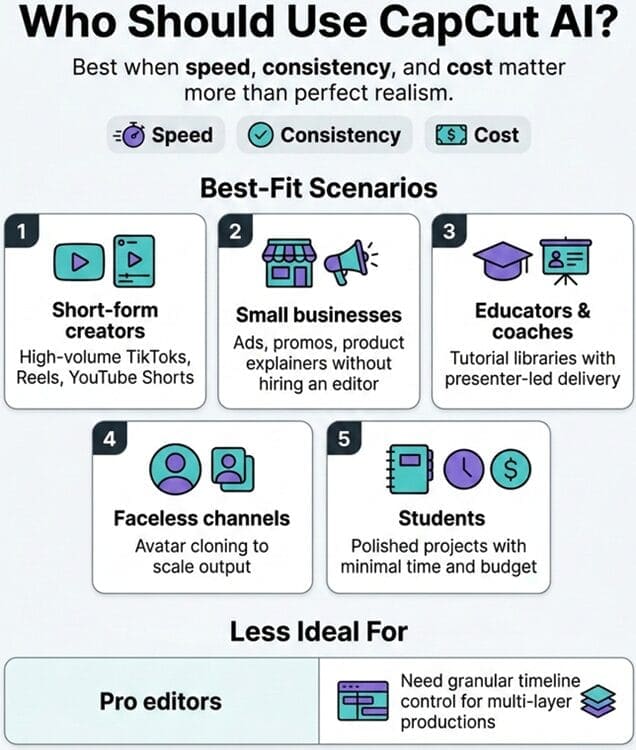
CapCut AI shines when speed, consistency, and cost matter more than perfect realism.
It’s especially strong for creators who publish frequently and want repeatable workflows.
Best-fit scenarios:
- Short-form creators producing TikToks, Reels, and YouTube Shorts at high volume
- Small businesses making ads, promos, and product explainers without hiring an editor
- Educators and coaches building tutorial libraries with presenter-led delivery
- Faceless channel operators using avatar cloning to scale output
- Students producing polished projects with minimal time and budget
Less ideal scenarios:
- Pro editors requiring granular timeline control for multi-layer productions
If you’re in the “I need to publish weekly and don’t want to edit for hours” camp, CapCut AI is a strong match.
If you’re building an enterprise training machine, you’ll likely outgrow it.
Comparison With Competitors (Synthesia, InVideo AI, VEED, Tagshop)
CapCut AI competes in a crowded field, but its pricing and accessibility make it stand out for individual creators.
Here’s a practical comparison:
| Feature | CapCut AI | Synthesia | InVideo AI | VEED.IO |
|---|---|---|---|---|
| Starting price | $3.99 intro | $18/mo (yearly) | $28/mo (yearly) | $12/mo (yearly) |
| Free option | 7-day trial | Free plan (10 min/mo) | Free plan (watermarked) | Free plan (limited) |
| Avatars | 100+ | 125–240+ | Yes + actor marketplace | 60+ |
| Avatar cloning | Yes | Yes (Creator+) | Yes | Yes (Pro) |
| Platform | Web + desktop + mobile | Web | Web | Web + mobile |
| Enterprise/L&D | Limited | Strong | Mixed | Mixed |
Where competitors can win:
- Synthesia is the most enterprise-ready (translations, compliance, LMS/SCORM, analytics).
- InVideo AI tends to be stronger for stock-heavy marketing and UGC-style workflows.
- VEED shines when you want editing-first tools like filler removal and eye contact correction.
- Tagshop AI is purpose-built for performance marketers creating UGC-style ad variations.
Expert Opinion

CapCut AI’s real strength is that it doesn’t force you into a single workflow.
You can start from templates, one-click generation, or a full script.
You can also iterate quickly: generate a draft, swap scenes that feel generic, test voices, then export.
That loop is what makes it practical for content creators with real publishing schedules.
The two standout features are avatar cloning and brainstorming.
Cloning gives creators a way to scale output while staying consistent (and optionally off-camera).
Brainstorming reduces the “idea friction” that kills momentum. This is, especially, useful for creators who need to publish weekly.
The weaknesses are also clear.
If you demand cinematic realism, perfect lip-sync, and the fine-grained control of a pro NLE, CapCut AI will feel limiting.
And if multilingual output is your business model, CapCut’s current localization depth may not be the best fit.
But judged for what it is—an accessible AI video production tool with unusually aggressive entry pricing—it punches above its weight.
CapCut AI for TikTok/Reels/YouTube Shorts: Is Pro Worth It?

If you’re creating TikToks, Reels, or YouTube Shorts consistently, CapCut AI is at its best when you treat it like a repeatable publishing machine: generate a draft fast, tweak scenes and captions, export, post—repeat.
The question is whether CapCut AI Pro is necessary for short-form creators, or whether the free version gets the job done.
Here’s the clean way to think about it:
- If you’re posting 1–2 times per week and you don’t mind constraints (like watermarks or fewer export controls), the free version can be enough to learn the workflow and validate the output.
- If you’re posting 3–7+ times per week, working with clients, or trying to build a faceless Shorts channel at scale, Pro is usually worth it. This is mainly because it reduces “last-mile friction” (export polish, watermark removal, higher-end output options).
CapCut AI Free vs Pro for Short-Form Creators (Practical Checklist)
Use this checklist to decide in under a minute.
The free version is “enough” if…
- You’re mainly testing whether text-to-video fits your workflow
- You’re okay with limitations on exports (especially watermark presence)
- Your content is casual/experimental and you’re not optimizing for a premium feel
- You’re still dialing in fundamentals: hooks, pacing, captions, scene swaps
Pro is worth it if…
- You need watermark-free exports for brand credibility (or client work)
- You want more confidence in export quality controls (and higher-end options)
- You’re producing at volume and want smoother repeatability across projects
- You plan to lean on avatars/avatar cloning heavily for a faceless TikTok/Shorts pipeline
- You’re repurposing content across platforms and need clean versions for each aspect ratio
Our real-world take:
For TikTok/Shorts specifically, watermark removal is the “silent upgrade.” Even when viewers don’t consciously notice it, watermark-free video reads as more intentional, especially for ads, offers, and educational clips where trust matters.
💡 Tip: If you’re on the fence, the sweet spot is 7-day free trial → $3.99 first month. That gives you enough runway to publish a real batch (10–30 Shorts), not just do a single test.
FAQ
Is CapCut AI free?
It offers a 7-day free trial with broad access.
After that, you’ll need Pro for watermark-free exports and higher-end export controls.
Can I customize videos created by CapCut’s AI generator?
Yes.
You can edit scenes, swap visuals, change subtitles, adjust music, and refine pacing.
It’s not as granular as pro NLEs, but customization is built in.
What export quality can I get?
During the free plan/trial you can export in 1080p HD (typically with watermark constraints depending on plan rules).
Pro supports higher resolutions up to 8K and removes the watermark.
Conclusion and Verdict: Is CapCut AI Worth It?
CapCut AI is worth it if your priority is speed-to-publish, consistent output, and a low barrier to entry.
The 7-day free trial gives you enough room to test avatar quality, voice options, and export workflow.
The $3.99 intro month makes the “trial after the trial” affordable, which is rare in this category.
If you’re a beginner creator, social media manager, educator, or faceless channel operator, CapCut AI is one of the best value picks right now.