Short-form video keeps getting more competitive: the difference between a scroll-past and a save often comes down to how fast you can iterate ideas into finished edits.
That’s why “triple-input” generation, turning text, images, or audio into videos, has become the new battleground among AI editors.
In this Filmora AI review, we tested Filmora AI’s promise as an “all‑in‑one AI video generator” designed to speed up everything from TikTok/Reels to YouTube B‑roll and podcast repurposing.
Filmora AI (from Wondershare) stands out because it blends generative AI creation with a traditional, track-based editor. This means that you can generate a draft quickly and still have timeline control to polish it.
It also leans heavily into social-first output: vertical ratios, auto captions, and trendy image-to-video effects.
If you’re trying to decide whether Filmora AI is worth paying for, the real questions are simple:
Is the generation quality good enough?
Is the credit system predictable enough?
Does the cross-platform experience hold up?
Let’s break it down.
Filmora AI Review Summary (Executive Take)
Filmora AI’s core differentiator is its “three ways in” approach: text/idea-to-video (Veo 3 powered), image-to-video with viral templates, and audio-to-video for repurposing podcasts.
It also has a full editing suite for refining the results.
In real use, it’s legitimately fast for creating draft social videos and short clips, but it’s not a one-click “viral machine.” You still need to tweak scripts, regenerate scenes, and polish pacing.

Filmora AI
Filmora AI transforms text, images, and audio into professional videos using advanced AI technology.
With Veo 3-powered generation, 2.9M+ creative assets, and intuitive editing tools, it's perfect for content creators, podcasters, and marketers.
Plans start at $3.75/month with 14-day free trial available.
Key findings at a glance
What works
- Triple input method (text/image/audio-to-video) is a rare combination in a single editor.
- Veo 3 integration produces strong visuals for social-grade content.
- 2.9M+ creative assets library helps fill gaps when AI scenes don’t land.
- Desktop + mobile support makes casual editing and publishing easier.
- Separate tracks (video/audio/text) provide real control after generation.
What doesn’t
- Audio-to-video is still PC/Mac only (mobile “coming soon”).
- Windows features noticeably outpace Android feature depth.
System Requirements (Reality Check)
Filmora AI’s generative features are cloud-dependent. Even if your laptop is strong, slow internet will feel like “slow AI.”
- Minimum: Windows 10 / Android 9.0, 8GB RAM, ~2GB free storage
- Recommended: Windows 11 / Android 13, 16GB RAM, 10GB SSD storage
- Internet: stable 10+ Mbps for reliable generation and previewing
Key Features (AI + Editing Suite)
Filmora AI is best understood as two products in one: an AI generator that builds drafts (scenes, voiceovers, captions), and a timeline editor that lets you refine like a traditional NLE.
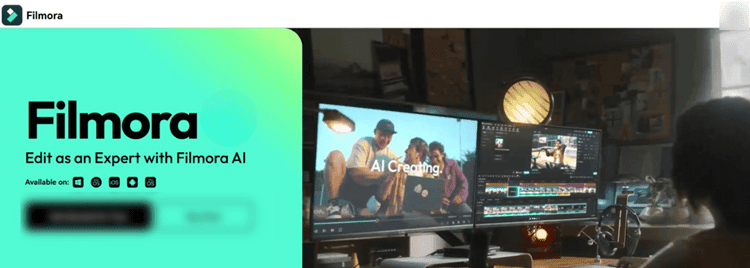
This hybrid structure is why Filmora can outperform “prompt-only” tools when you need a publishable result fast.
1) AI Text/Idea to Video (Veo 3 powered)
You enter a prompt and Filmora generates a script, storyboard scenes, suggested visuals, captions, and voiceover.
The quality jumps dramatically when prompts are specific—camera angle, lighting mood, pacing, and intended platform.
With detailed prompts, the output looks “expensive” enough for social ads and brand posts, but character consistency can wobble across scenes (especially with recurring personas).
Filmora does offer a character consistency feature (via reference images), which helps, but it’s not perfect.
Before you commit to Filmora AI for client work or ad spend, it’s worth getting specific about what it can and can’t do with realistic humans.
How good is Filmora AI text-to-video?
If your workflow depends on realistic AI people (UGC-style ads, talking-head hooks, “founder story” clips), Filmora AI is surprisingly usable, but only when you design around its weak points.
What Filmora AI does well (for social-grade realism)
- Faces in controlled shots: Medium shots and close-ups with simple lighting tend to look the most convincing. “Soft window light, 50mm, shallow depth of field” style prompts consistently improve the output.
- Short, punchy scenes: The model holds up better in 2–4 second clips than in long continuous takes. For TikTok/Reels pacing, that’s usually fine. It also keeps regeneration costs in check.
- Basic conversational delivery: For non-technical lines, the cadence is often “good enough” for scroll content, especially if you’re layering captions, cutaways, or b-roll.
Where it can break (and why creators notice immediately)
- Hands and finger detail: Filmora AI is not the tool I’d pick for hand-heavy storytelling—holding a product, typing, pointing, or “showing” something to camera. Hands still drift into uncanny territory in motion, and viewers catch it fast.
- Complex mouth movement / lip sync: For tight talking-head shots with lots of consonants, lip movement can look slightly off. It’s passable for quick hooks, but risky for longer dialogue.
- Character consistency across scenes: Even with reference images, recurring humans can subtly change (skin texture, hairline, wardrobe details). If your brand depends on a consistent spokesperson, expect manual work.
What if there are weak areas?
Best-practice workaround: generate the human-led hook, then cover the weak areas with Filmora’s strengths: separate timeline tracks, auto captions, and the 2.9M+ Creative Assets library for b-roll overlays.
If you need an alternative avatar-first delivery, this is where Virbo remains a clean fit.
Is Filmora AI image-to-video good enough for product demos and Etsy/Shopify ads?
For e-commerce creators, Filmora’s image-to-video isn’t a replacement for real product footage, but it is a strong way to produce scroll-stopping ad variations from existing photos.
Where it shines:
- Etsy/Shopify listings with strong images: High-res product photos on clean backgrounds generate the most stable motion. You can quickly build 5–15 second ad assets with movement, text overlays, and trending visual energy.
- Lifestyle “vibe” shots: If you already have on-brand photography, Filmora can add subtle camera motion (push-ins, parallax-like movement) that reads as premium on Instagram Reels.
Practical recommendation: Use AI image-to-video for top-of-funnel hooks (aesthetic motion + captions + CTA), then splice in real clips for proof.
If your priority is “template-first viral product ads,” it’s also worth comparing with Clipfly AI.
2) AI Image to Video (viral effects + prompt animation)
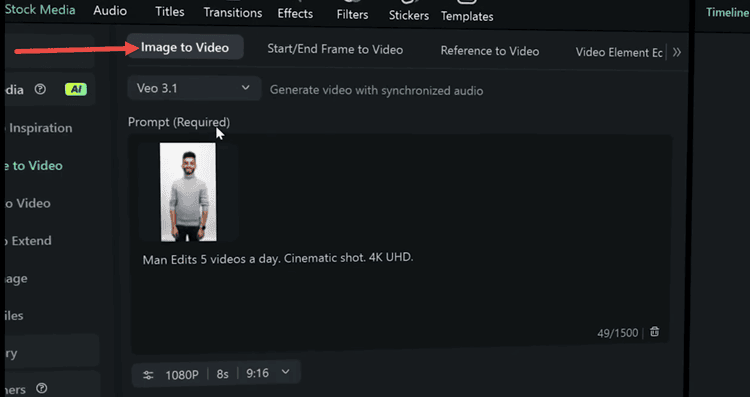
Filmora’s image-to-video is clearly designed for trend participation.
Templates like AI Kiss, AI Fight, dance/motion presets, and historic photo revival are fast routes to short, attention-grabbing clips.
Frontal portraits typically perform best; side angles increase face distortion risk.
For custom prompt animation (“make my cat cook pasta”), Filmora can get you 70–80% of the way there, but you may still regenerate sometimes to nail lighting and scale realism.
3) AI Audio to Video (PC/Mac only)
Audio-to-video is Filmora’s most “money” feature for podcasters and educators.
You upload audio, Filmora identifies peaks and quotable segments, then generates visuals, captions, and optional avatar delivery.
For repurposing long episodes into Shorts/Reels, it’s a practical time-saver.
The real win is segmentation + captions + editable tracks; even when a scene is wrong, fixing it is straightforward inside the editor.
4) Traditional editing and the 2.9M+ Creative Assets library
Beyond AI, Filmora includes 100+ editing features: trimming, speed ramps, transitions, overlays, text templates, green screen, and strong audio tools (music library + noise reduction).
This matters because AI drafts rarely ship untouched.
Filmora’s separate timeline tracks are a real advantage for polishing pacing, replacing weak scenes, and tightening captions.
User Experience (Desktop vs Mobile)
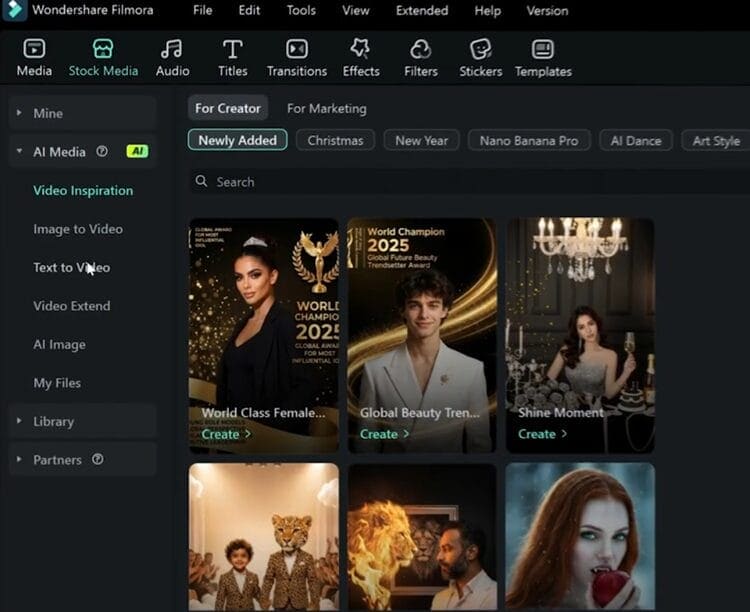
Filmora AI’s UI is modern and generally approachable, but it can feel “busy” once you start exploring AI options, templates, and assets.
On desktop (Windows/Mac), navigation is organized around creation modes (Text/Image/Audio-to-Video).
Most users can learn the basics in a few hours, but mastery, especially for consistent AI generation, takes longer because you’re learning both editing and prompting habits.
On mobile (Android/iOS), touch controls are responsive and the interface is optimized for quick edits, but feature parity is the bigger issue.
Notably, credit allocations differ: Windows gets far more monthly credits than Android at the same plan tier (e.g., Premium gives 2000/month on Windows vs 400/month on Android).
Audio-to-video is also missing on mobile, which breaks the dream of “record a podcast, instantly convert to shorts on your phone.”
Performance and Reliability (What It Feels Like Day-to-Day)
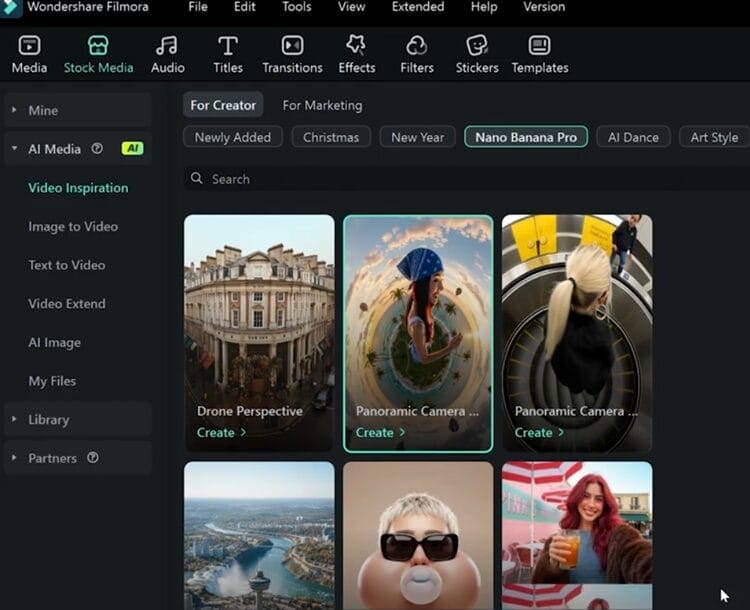
Depending on model load and scene complexity, drafts can take anywhere from ~30 seconds to ~5 minutes.
As a workflow workaround, generating 2–3 variants (when credits allow) is smart.
Desktop stability is “moderate.”
RAM usage can jump into the 2.5–4GB range during AI operations, and NVIDIA GPU acceleration helps, while AMD support is more limited.
Sync across devices generally works, but switching mid-edit can sometimes cause project conflicts.
Pricing and Plans (Individuals, Team, Education)
Filmora AI’s pricing looks very competitive at first glance, but the real cost depends on how fast you burn credits.
Individuals (Yearly)
- Basic: $3.75/month billed yearly ($44.99). Windows only. Includes Creative Assets trial, 1GB cloud, watermark-free export, 4K export, and 500 AI Mate conversations.
- Advanced: $5.00/month billed yearly ($59.99). Windows + Android. Includes 1000 credits/month (Windows) and 200 credits/month (Android), 10GB cloud, and Creative Assets trial.
- Premium: $6.67/month billed yearly ($79.99). Windows + Android. Includes 2000 credits/month (Windows) and 400 credits/month (Android), Creative Assets, and 100GB cloud.
Individuals (Perpetual)
- Perpetual: $71.99 one-time (Windows). Includes Creative Assets trial and 1000 AI credits. You also get Filmora 14 updates.
Team and Business
- Team Plan: $155.88/year for 1 user (Windows). Includes editing features and business use rights, but does not include Creative Assets or AI credits.
- Business plan is custom beyond 5 users.
Education (Student)
Monthly $19.99, Annual $40.99, Perpetual $49.99 (1 PC). No credits or Creative Assets included.
Value judgment:
For solo creators, Advanced or Premium yearly often makes sense if you’re using AI features weekly.
If you’re mainly editing and only occasionally generating, Perpetual can be good. Just remember credits are finite and may require top-ups later.
Pros and Cons
Pros:
Filmora AI’s biggest advantage is practical versatility.
The triple input pipeline (text, image, audio) means you can start from whatever you already have: an idea, a photo, or a podcast episode.
Veo 3-powered generation produces strong visuals for social content, and the voiceover quality is surprisingly natural compared to many mid-tier AI tools.
The editor itself is a real strength.
Separate tracks for captions, audio, and video make it much easier to “fix AI”—swap scenes, tighten timing, and improve the hook.
The Creative Assets library is also a safety net when AI visuals don’t match your script.
Cons:
The credit system is the biggest drawback. Credits vary across platforms and tiers, and usage can feel opaque until you’ve already paid and started generating.
Mobile feature parity is also an issue: Android gets fewer credits, and audio-to-video remains desktop-only.
Finally, “no skills needed” is only partially true. You don’t need Premiere-level expertise, but you do need basic prompting skills and a willingness to regenerate and refine.
Use Cases (Who It’s Best For)
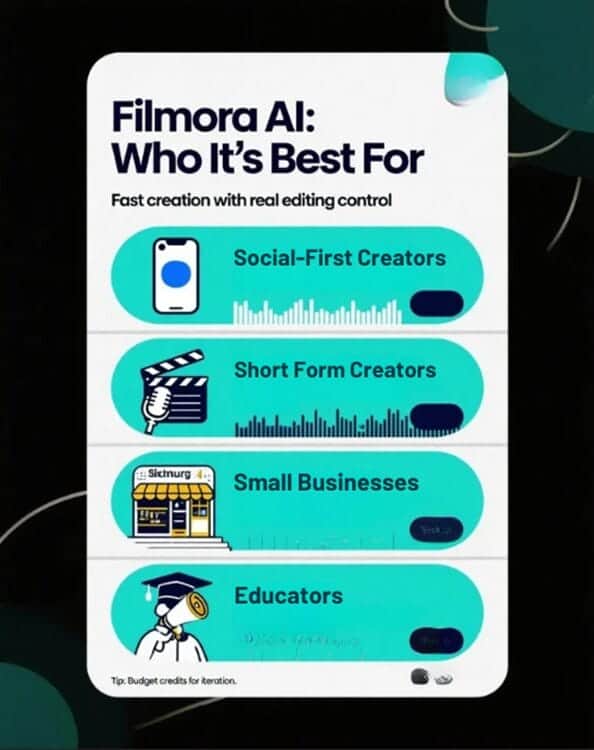
Filmora AI is a strong fit for social-first creators who need speed + editing control.
Short-form creators can generate an idea draft, insert captions, swap scenes, and export in the right ratio quickly.
Podcasters can turn long audio into multiple shorts, then edit pacing and text overlays on a timeline instead of fighting a rigid prompt-only tool.
Small businesses benefit because Filmora bridges the gap between “template tools” and “real editing.”
You can create credible ads and promos without hiring an editor, as long as you keep expectations realistic and budget credits for iteration.
Educators can use audio-to-video for story narration, language clips, or course snippets, but should expect to manually review captions for accuracy.
Comparison With Competitors (Clipfly, InVideo AI, Virbo)
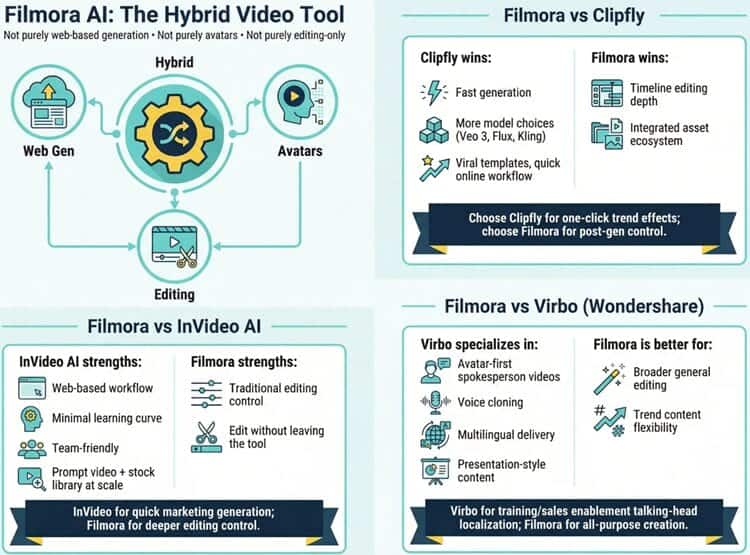
Filmora AI competes in a crowded market, but it sits in a distinct “hybrid” position: not purely web-based generation, not purely avatars, and not purely editing software.
Filmora AI vs Clipfly
Clipfly often wins on fast generation and model choice (Veo 3, Flux, Kling, etc.) and leans hard into viral templates and quick online workflows.
Filmora wins on timeline editing depth and an integrated asset ecosystem.
If you want more one-click trend effects, consider Clipfly AI; if you want more post-gen control, Filmora is usually the better fit.
Filmora AI vs InVideo AI
InVideo AI is optimized for web-based workflows with a minimal learning curve and team-friendly features.
It’s great for marketers who want prompt-generated videos plus stock library access at scale, but it’s less about editing and more about “generating and tweaking.”
Filmora shines when you want traditional editing control without leaving the tool.
For a deeper breakdown, you may check our review of InVideo AI as a possible alternative.
Filmora AI vs Virbo (by Wondershare)
Virbo is more avatar-first: spokesperson videos, voice cloning, multilingual delivery, and presentation-style content.
Filmora is broader and more flexible for general editing and trend content.
If you are building sales enablement videos, training modules, or talking-head localized content, you may want to check some details about Virbo as the more specialized option.
Expert Opinion (Is It Actually Worth It?)
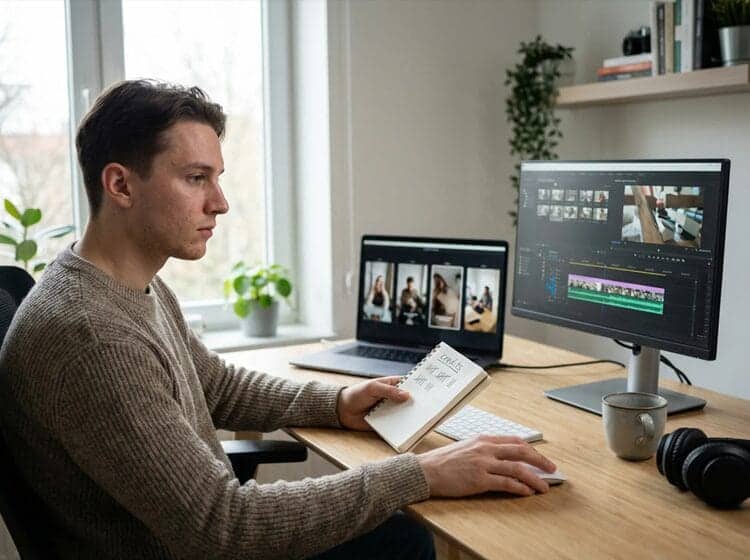
Filmora AI is worth it when you treat it as a speed tool + an editor, not as a replacement for creative judgment.
The best workflow is: generate quickly, pick the best variant, then polish on the timeline.
That’s where Filmora beats many AI generators that output something you can’t easily “fix.”
For creators posting frequently, the time savings are real: turning a concept into a usable 20–60 second draft can take minutes instead of hours.
The biggest hesitation is pricing clarity. Because credits are central to AI generation, users need predictable burn rates.
If you generate multiple variations per idea (which you should), credits disappear faster than expected.
Premium can be a great deal if you generate often on Windows, but the Android credit allocation can feel restrictive for phone-first users.
My practical advice: if you’re serious about consistent publishing, pick Advanced or Premium yearly and track credit usage for two weeks.
If you generate rarely but still want a solid editor, Perpetual can work. Just remember AI is not “unlimited.”
Conclusion and Verdict
Filmora AI is a strong hybrid AI video tool: it generates drafts from text, images, and audio, and then gives you real editing control to make them publishable.
Veo 3 integration helps it compete on visual quality, and the Creative Assets library reduces friction when AI outputs miss the mark.
For social creators, podcasters, and small businesses, it can meaningfully reduce production time without forcing a fully prompt-only workflow.
The two reasons to hesitate are the credit system and mobile limitations, especially if you rely on Android credits or want audio-to-video on your phone.
If you’re okay working primarily on desktop and you value a timeline editor, Filmora AI is easy to recommend.
Verdict: Filmora AI is worth it for creators who publish often and want speed plus editing control.