Video is still the highest-leverage content format, but production costs (time, editing skills, and tool sprawl) remain a bottleneck for creators and small teams.
That’s why “prompt-to-video” platforms are exploding. These are tools that can write a script, assemble visuals, add voiceover and captions, then export a publish-ready cut in minutes.
In this InVideo AI review, we'll focusing on what actually matters if you’re deciding whether to pay: video quality (especially with Veo 3.1), speed, ease of editing, and how the credit/minute system affects real-world output.
InVideo AI sits in a crowded market alongside avatar-first platforms and editor-first tools.
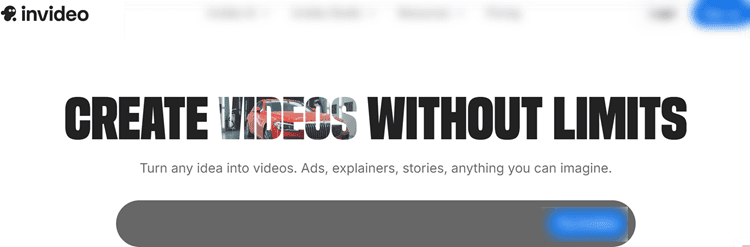
Its standout positioning is a hybrid workflow of AI-generated media + a massive stock library (16M+) wrapped in a prompt-based editor (“Magic Box”) that avoids the traditional timeline learning curve.
If you’re producing regular YouTube Shorts, TikToks, product ads, or faceless explainers, the platform’s promise is simple: text prompt in, publish-ready video out.
InVideo AI Review: Executive Summary
First impressions: onboarding, dashboard, and workflow clarity
InVideo AI is fully web-based, so there’s nothing to install and it’s accessible from most modern browsers.
The first dashboard view is straightforward: you’re guided into choosing a workflow (TikTok, explainer, UGC ad, etc.) or typing a prompt immediately.
The onboarding feels geared toward non-editors; less “blank canvas,” more “fill in the form and generate.”

InVideo AI
InVideo AI transforms text prompts into publish-ready videos with AI-generated scripts, visuals, and voiceovers in 50+ languages.
Create TikToks, YouTube videos, and marketing content without filming.
Features voice cloning, AI avatars, and Veo 3.1 integration.
Free plan available; paid plans start at $28/month yearly.
Where it scores best is workflow clarity: Prompt → Generate → Edit → Export is consistent across use cases, and Magic Box makes changes feel conversational instead of technical.
Key findings:
The big differentiator is Veo 3.1 integration.
It improves scene realism and helps avoid the “random stock montage” feeling when your prompt demands unique visuals.
That said, character consistency (recurring people across scenes) still requires careful prompting and occasionally manual swaps.
The credit system is more complex than simple “minutes exported,” but once you understand the difference between video minutes and generative seconds, it becomes manageable with a repeatable workflow.
Ratings (preview):
- Overall Score: 8.6/10
- Features: 9/10
- Ease of Use: 9/10
- Value for Money: 8/10
- Video Quality: 8.5/10
- Customer Support: 8/10
Best suited for (and who should avoid it):
InVideo AI is strongest for creators producing 10+ videos/month, small businesses that need faceless marketing videos, and marketers building multi-variant ad campaigns.
It’s not ideal for professional editors who require frame-by-frame control, high-end compositing, or deep timeline workflows.
Key Features (What You’re Really Paying For)
1) Text-to-video generation (Veo 3.1 + stock hybrid)
InVideo AI starts with prompts and can generate scripts automatically, then create a scene-by-scene storyboard.
The biggest benefit here is speed: you can go from idea to draft without writing a full script or hunting for media.
Veo 3.1 helps when you need a visual that’s specific to your prompt, not something generic found in stock.
However, the best output usually comes from a hybrid approach: let AI generate the “hard-to-find visuals,” then lean on stock for safe, high-quality b‑roll.
This is also how you reduce the “AI tells” (odd hands, inconsistent objects, strange physics).
If you publish frequently, it’s worth building a repeatable prompt style.
2) Magic Box editing (prompt-based revisions)
Magic Box is the feature that makes InVideo AI feel different from “AI video plus a basic editor.”
You can type commands like “delete scene 4,” “change voice to US female,” or “make the intro funnier.”
For advanced users, there’s still scene-level control: you can fine-tune visuals, script lines, captions, and music per scene.
It’s not full professional NLE control, but it’s enough for social content and marketing videos.
3) Voiceovers, languages, and voice cloning
InVideo AI includes 200+ voices across 50+ languages with more natural intonation than older generation TTS.
The key difference is that many voices now sound good enough for casual content without sounding robotic, especially at faster TikTok pacing where imperfections are less noticeable.
Voice cloning is tiered: 2–8 express clones depending on plan, and up to 40 on Team.
If you’re building a personal brand but don’t want to record every script, cloning can keep tone consistent across dozens of videos.
4) Avatars, actors, and face-matching safeguards
You can use AI avatars or pick creators from an actor marketplace.
InVideo emphasizes consent and face-matching protection to block unauthorized usage, which is increasingly important for businesses.
Lip-sync is generally solid for short lines and straightforward delivery, but fast speech, strong accents, or complex translations can expose drift.
If your business relies on spokesperson videos (corporate training, HR, customer onboarding), you might compare avatar polish versus other tools.
We also recommend reading review of Virbo for a more avatar-centric platform perspective.
5) UGC ad creation + product clone from URL
For e-commerce sellers and performance marketers, the product clone feature can generate a product visual from a link, then build UGC-style ads using templates.
Output quality depends heavily on the source page (clear product images and bullet points yield better results).
The biggest advantage is speed in producing variants: hook changes, CTA swaps, and different voice/accent versions.
User Experience (Ease of Use, Learning Curve, Editing)
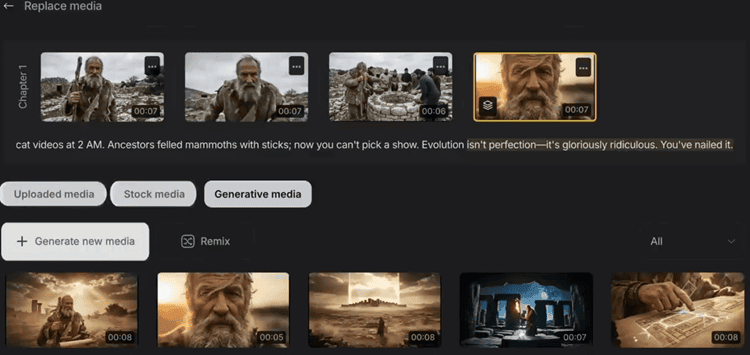
InVideo AI is designed for non-editors.
The interface is workflow-led, which means you’re guided through content type, platform, tone, and voice before generation.
This is more beginner-friendly than editor-first tools, and it reduces decision fatigue.
It’s also why creators can reasonably hit the “publish in 5 minutes” promise if you accept the draft with minimal edits.
Learning curve is low, but there are two places beginners get stuck.
First is prompting: vague prompts produce generic results.
Second is understanding the quota system: video minutes, AI credits, and generative seconds are not interchangeable.
Editing workflows are smooth if you treat InVideo AI like a “draft generator plus refinements.”
If you need precise timing, advanced keyframing, or complex compositing, you’ll feel limited. In that case, editor-first tools may be better.
See review of Filmora AI if you want a hybrid of AI generation plus classic timeline control.
Performance & Reliability (Speed, Quality, Stability)
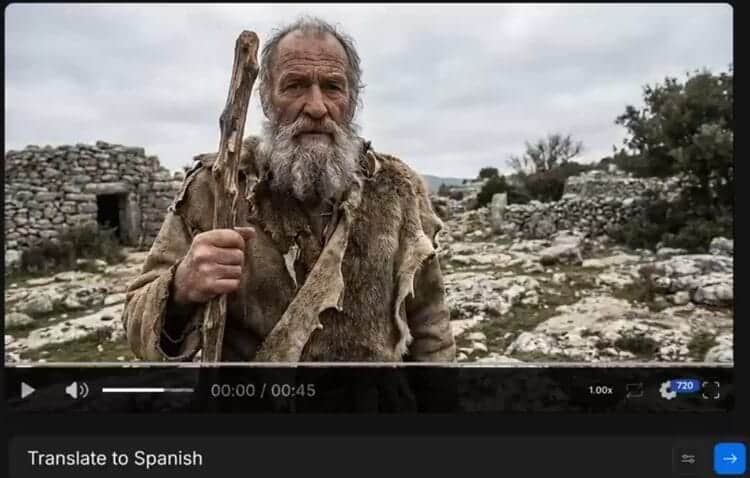
Generation speed (realistic expectations)
Generation time depends on length and how much generative video you request.
For short-form content (15–30 seconds), you can usually get a usable preview in a couple of minutes, then iterate quickly with Magic Box.
Longer videos are still practical, but you’ll spend more time revising scene pacing, fixing awkward transitions, and checking factual accuracy in scripts.
Output quality: visuals, audio, and export settings
InVideo AI supports up to 4K export, and overall compression is solid for social platforms.
The most common quality bottleneck isn’t resolution, it’s visual coherence.
Stock clips look clean but sometimes feel disconnected; generative clips can match context but may show AI artifacts. The best results come from mixing both.
Voiceover audio clarity is generally strong, but you should still review pronunciation for niche terms, brand names, and technical vocabulary.
Reliability & failed generations
Cloud tools occasionally fail (timeouts, partial renders, odd scene choices).
The platform is generally stable, but you should plan for retries and keep prompts modular.
A useful “pro tip” is to generate shorter drafts first, then expand once the style is dialed in. This is also how you protect your credits.
Pricing & Plans
InVideo AI’s pricing makes sense only when you map it to your output volume.
You’re paying for: (1) video minutes per year, (2) AI credits, (3) generative seconds/minutes, (4) iStock pulls, plus (5) clones/storage/users.
Yearly plans (most cost-effective)
- Plus ($28/month yearly): 50 video mins, 10 credits, 95 iStock, 30 secs generative, 2 express clones, 3 users, 100GB.
- Max ($50/month yearly): 200 video mins, 40 credits, 320 iStock, 120 secs generative, 5 clones, 3 users, 400GB.
- Generative ($100/month yearly): 200 video mins, 100 credits, 320 iStock, 300 secs generative, 8 clones, 3 users, 400GB.
- Team ($899/month yearly): 2000 video mins, 1000 credits, 3200 iStock, 50 mins generative, 40 clones, 4TB (1 seat scalable).
Free plan reality check
Free includes 2 video mins/week + 1 AI credit/week, 1 express avatar, and 4 exports/week with watermark.
It’s enough to judge UI and workflow, but not enough to evaluate what Veo 3.1 can really do because there’s no generative access.
If you’re mainly comparing tools by price, it’s also worth checking our review of Clipfly AI because its pricing structure is credit-driven and can be cheaper for short experiments.
Plan Recommendation for Daily YouTube Shorts & TikTok Creators (Max vs Generative)

If you’re posting daily YouTube Shorts or TikToks, plan choice comes down to one thing: how often your videos need truly generated visuals (Veo 3.1) versus stock + edits.
Here’s the practical way to think about it: video minutes cover your exported length, but generative seconds are your “premium spice.”
Most daily creators don’t need fully generative footage in every scene. They need strong hooks, clean pacing, captions, and consistent formatting.
That’s where InVideo’s stock library + Magic Box workflow does most of the heavy lifting.
Which InVideo AI plan is best for daily posting?
For most daily Shorts creators, the sweet spot is the Max plan.
At 200 video mins and 40 credits, Max is the best balance for people shipping volume and iterating fast.
You’re getting enough headroom to build a repeatable system: generate a draft, tighten the hook, swap scenes, and export multiple versions without feeling like every test costs you twice.
Where creators underestimate usage is revision, not export.
Daily posting means you’ll burn time (and patience) on iteration. Max gives you enough credits to keep refining rather than “settling” for the first draft.
Is the Max plan worth it, or do you really need Generative for high-quality AI video?
You “need” Generative ($100/mo yearly) only if your content relies on custom, prompt-specific visuals as the main value, not just as occasional scene support.
Choose Max if:
- Your Shorts are mostly faceless explainers, listicles, commentary, or UGC-style edits
- You lean on stock b-roll and use AI generation selectively (openers, transitions, rare visuals)
- Your priority is throughput (daily consistency) over fully cinematic uniqueness
Choose Generative if:
- You want your videos to look less like “stock b-roll storytelling” and more like bespoke scenes throughout
- Your niche demands visuals that stock can’t cover (e.g., futuristic product concepts, specific scenario reenactments, stylized worlds)
- You’re producing multiple concept variants where generative footage is the differentiator (not just the script)
A good rule: if your workflow is “generate 1–3 key scenes with Veo 3.1, stock for the rest,” Max usually holds up.
If it’s “almost every scene must be generated,” Generative becomes the safer pick for quality and consistency.
Pros and Cons
Pros:
InVideo AI is one of the fastest ways to move from concept to publishable video without editing experience.
The workflow templates reduce the blank-page problem, and Magic Box makes revisions less intimidating.
Veo 3.1 integration improves uniqueness when stock footage would look generic.
It’s also strong for scaling: multi-variant ads, bulk shorts, and localization are practical, even for solo creators.
The combination of stock + generative media lets you choose between polish and originality depending on the project.
Cons:
The credit and quota system can confuse new users.
You must pay attention to what consumes AI credits versus what counts as video minutes versus generative seconds.
If you ignore this, you’ll feel like usage disappears faster than expected.
Use Cases (Who Gets the Most Value)

For short-form creators, InVideo AI is ideal for shipping high volume: daily TikToks, YouTube Shorts, and fast trend reactions.
The platform shines when you treat it like a content factory rather than a one-off cinematic creator.
If your strategy is consistent publishing, it can compress hours into minutes.
For small businesses, faceless marketing videos are the clearest win: product highlights, seasonal promos, simple explainers, and testimonial-style edits.
UGC ad workflows are especially useful when you need variations for testing hooks and CTAs.
For agencies and marketers, the combination of templates, collaboration, and localization support helps you scale across clients.
Comparison With Competitors (Where InVideo AI Wins/Loses)

InVideo AI is positioned between avatar-first tools and editor-first tools.
Against corporate avatar platforms, InVideo feels more creator-friendly and flexible for social content.
Against pro editing suites, it’s faster but less precise.
- Vs. Clipfly: Clipfly offers multiple generative models and a toolbox feel; InVideo offers an end-to-end publish-ready pipeline with stock integration and workflow templates. Consider Clipfly AI if you want a model-switching playground.
- Vs. Filmora: Filmora is better if you want classic timeline control plus AI features. InVideo is better if you want minimal editing and maximum throughput. Consider Filmora AI for a more editor-centric approach.
- Vs. Virbo: Virbo is stronger for spokesperson/avatar libraries and corporate-style videos, while InVideo is stronger for social content workflows and hybrid stock + generative production. Compare with Virbo if avatars are your primary requirement.
Expert Opinion

InVideo AI is at its best when you value output volume and speed more than perfect cinematic control.
It’s not trying to replace Premiere Pro for filmmakers. It’s trying to replace the messy combo of script writing, stock searching, voiceover recording, captioning, and repetitive resizing.
In that job, it performs extremely well.
The key to getting “worth it” value is building a repeatable process.
Use workflows, keep prompts structured, generate short drafts first, then refine.
Lean on stock for clean b‑roll and use Veo 3.1 for visuals that stock can’t match.
If you do that, your videos stop looking like AI experiments and start looking like consistent content.
Where people get disappointed is expecting perfect realism on human characters across many scenes, or assuming the free plan represents the paid experience.
If your content is avatar-heavy, compare alternatives.
If you need timeline precision, use an editor-first tool.
But if your goal is publishing consistently, InVideo AI is one of the most practical platforms.
Conclusion & Verdict
InVideo AI is worth it if you’re producing frequent social videos, marketing clips, or faceless explainers and you want a low-friction system that goes from prompt to export quickly.
Its strongest advantages are workflow templates, Magic Box prompt editing, the hybrid stock + generative approach, and Veo 3.1-powered visuals that reduce the “generic stock montage” feel.
The main trade-off is a learning curve around credits/limits.
Still, for creators and marketers optimizing for speed-to-publish and testing multiple variants, it’s a strong buy, especially on yearly pricing.
Verdict: 8.6/10 overall.
Best for consistent creators and marketers who publish often and iterate fast.